

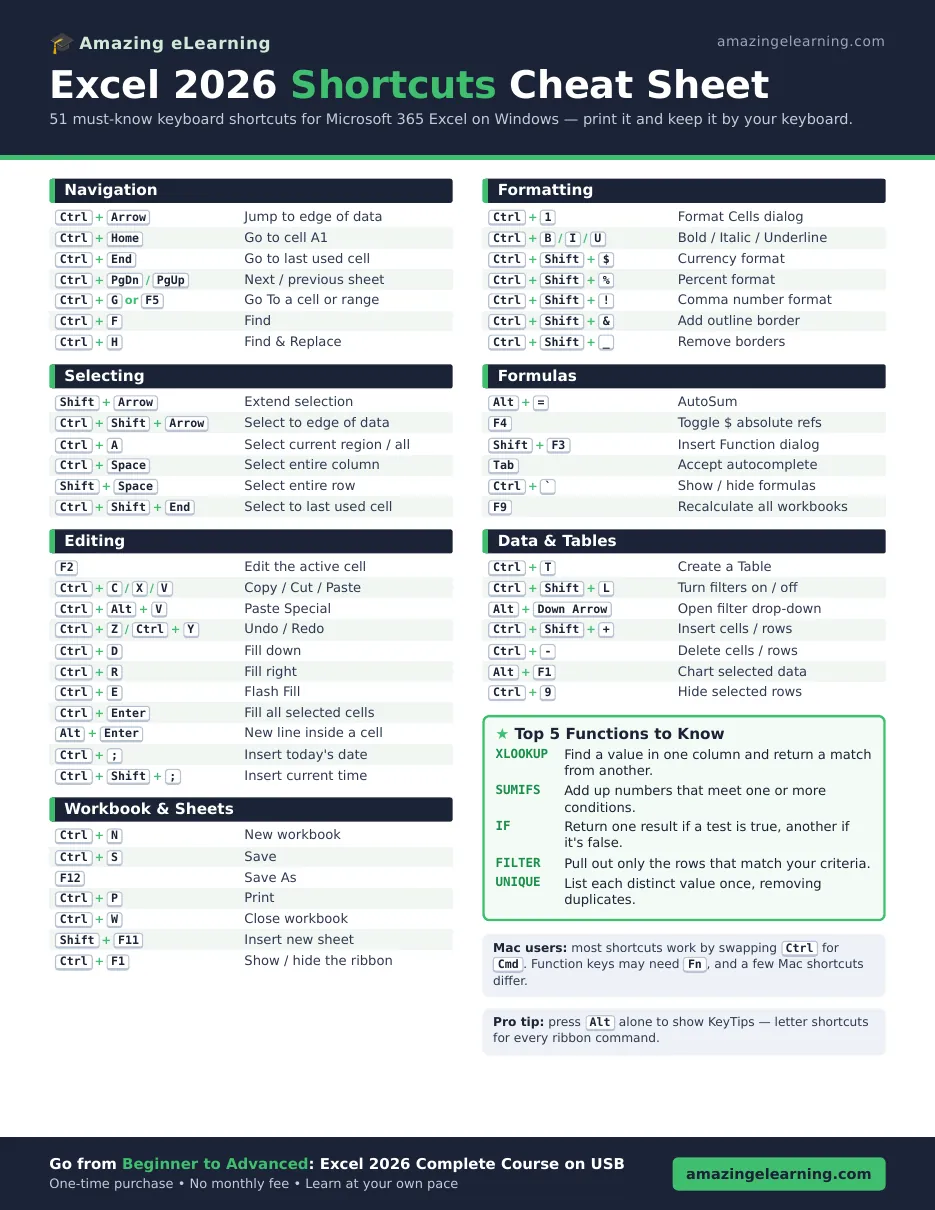
Want to work in Excel twice as fast? The quickest way is to stop reaching for the mouse. We put the 51 most useful Excel shortcuts on one printable page, grouped by task so you can find them in seconds. Download it free below, pin it next to your screen, and you’ll know most of them by heart in a week.
What’s on the cheat sheet
The free PDF covers Excel 365 (the 2026 version) on Windows and works in most older versions too. It’s organized into 7 groups:
- Moving around your workbook
- Selecting cells, rows and columns
- Editing and entering data
- Formatting
- Formulas
- Tables, filters and data
- Workbook and file basics
10 Excel shortcuts to learn first
If you only learn a handful, start with these. They save the most time every day.
- Ctrl + Arrow: jump to the edge of your data instantly.
- Ctrl + Shift + Arrow: select everything up to the edge of your data.
- Ctrl + T: turn your data into a Table with filters and banded rows.
- Alt + =: AutoSum the column or row in one keystroke.
- F4: toggle $ signs for absolute references while writing a formula.
- Ctrl + E: Flash Fill splits or combines text by following your example.
- Ctrl + 1: open the Format Cells dialog.
- Ctrl + ;: insert today’s date.
- Ctrl + Shift + L: turn filters on or off.
- Alt + Enter: start a new line inside the same cell.
Mac users
Most shortcuts work on a Mac by swapping Ctrl for Cmd. Function keys may need the Fn key, and a few Mac shortcuts are different.
Pro tip: the Alt key
Press Alt by itself and Excel shows a letter over every ribbon command (called KeyTips). Type the letters to reach any button without a mouse.
Get the free cheat sheet
Enter your email below and we’ll send the PDF straight to your inbox. You’ll also get occasional Excel tips and course deals, and you can unsubscribe anytime.
Ready to master Excel?
Shortcuts are a great start. If you want to go from beginner to confident, our Excel 2026 training course on USB walks you through everything step by step, from your first spreadsheet to pivot tables and advanced formulas. Plug it in and learn at your own pace, with no internet needed. It’s a one-time purchase with no monthly fee.
New to Excel? Start with the Beginner course.



Leave a Reply