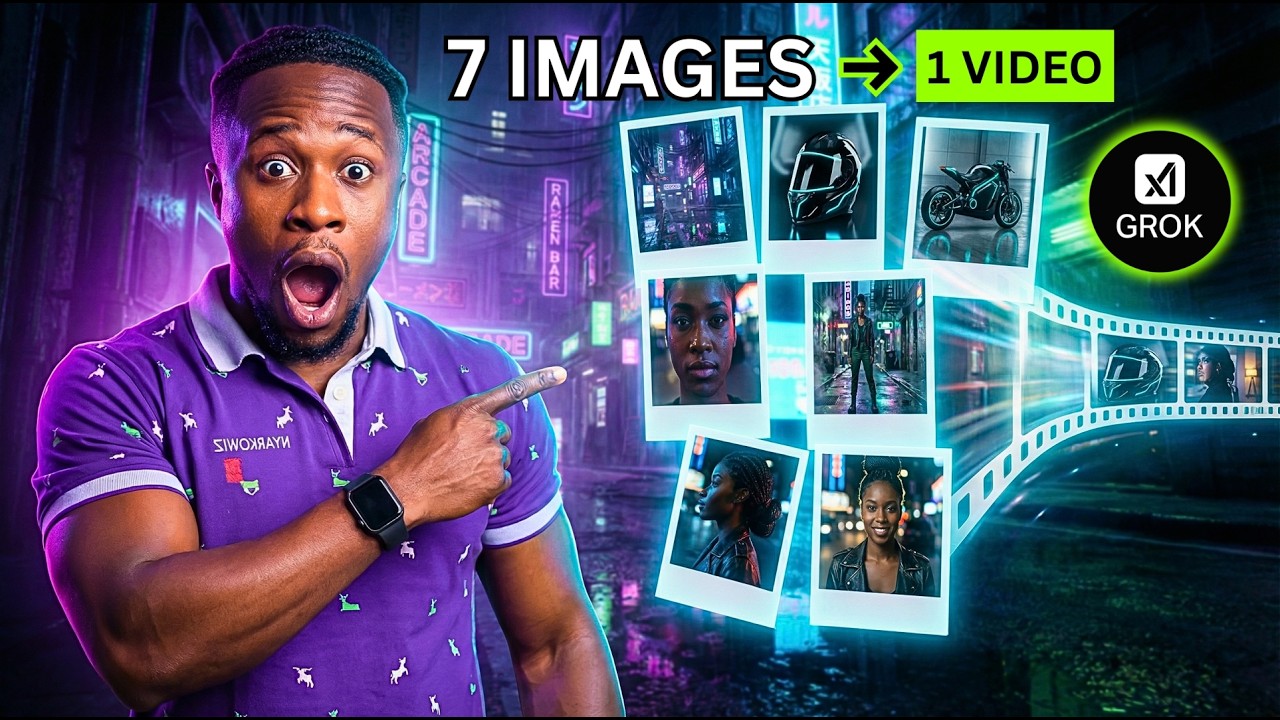
Grok AI’s new Animate Images feature lets you turn up to 7 images into one seamless video, and in this step-by-step tutorial, I’ll show you exactly how to use it. You’ll learn how to animate a single image, how to combine multiple photos into a smooth cinematic sequence, how to tag each image correctly with the @ image reference method, and how to use Extend Video to continue your AI-generated scene for longer results. This workflow fits directly into the kinds of Grok tutorials currently ranking around image to video AI, Grok AI video generator, animate photos, consistent AI characters, and cinematic AI video.
In this video, we test:
* 2-image animation with a start frame and end frame
* single image animation
* 5-image character consistency animation
* 7-image cinematic scene generation
* Grok AI Extend Video for longer AI clips
This Grok AI tutorial is perfect for anyone looking for:
Grok AI tutorial, how to use Grok, Grok animate images, image to video AI, AI video generator, AI animation tutorial, turn pictures into video AI, text to video, AI video editing, cinematic AI video, midjourney to video, Grok AI update, and general tech tutorial workflows.
Whether you’re creating AI short films, social media clips, cinematic edits, or testing new AI video tools, this tutorial shows you how to get better Grok AI animation results with clearer prompts and better image sequencing.
Timestamps
00:00 INTRO
00:24 What Grok Animate Images can do
01:08 How to access Grok Imagine
01:18 Edit Images vs Animate Images
01:38 Test 1: Start frame and end frame setup
01:45 Uploading Ronaldo and Messi images
02:17 How to tag Image 1 and Image 2 in the prompt
02:40 Generating the first 2-image animation
02:52 First result playback
03:09 How Grok Extend Video works
03:27 Extending the first clip
03:50 Extended result
04:20 Test 2: Animating a single image
04:34 Single image prompt setup
04:50 Single image animation result
05:05 Test 3: Animating 5 images
05:13 Uploading 5 reference images
05:34 Writing the 5-image prompt
06:24 5-image animation results
06:36 Extending the 5-image clip
06:46 Final 5-image result
07:03 Test 4: Animating 7 images
07:16 Uploading 7 images into Grok
07:59 Tagging all 7 images correctly
08:36 7-image results
08:43 Extending the 7-image video
09:25 Second extension for a longer cinematic sequence
09:37 Final playback
09:55 Outro
#GrokAI #GrokAITutorial #ImageToVideoAI #AIVideoGenerator #AIAnimation #GrokAnimateImages #CinematicAIVideo #TechTutorial #AIVideo #GrokUpdate
Grok AI, Grok AI tutorial, how to use Grok, Grok animate images, Grok AI update, Grok AI video generator, Grok AI image to video, Grok image to video, Grok Imagine, Grok Imagine tutorial, image to video AI, AI video generator, AI animation tutorial, turn pictures into video AI, text to video, AI video editing, cinematic AI video, tech tutorial, animate photos with AI, animate images AI, AI image animation, AI photo animation, photo to video AI, pictures to video AI, multiple images to video, turn 7 images into video, animate 7 images, Grok animate multiple images, Grok video extension, Extend Video Grok, consistent AI characters, AI character consistency, cinematic AI animation, AI filmmaking, AI video tutorial, free AI video generator, AI video tool, AI content creation, AI short film, AI story video, midjourney to video, image animation tutorial, video generation AI, AI motion video, create AI videos, Grok tutorial 2026, new Grok feature, Grok AI new feature
source